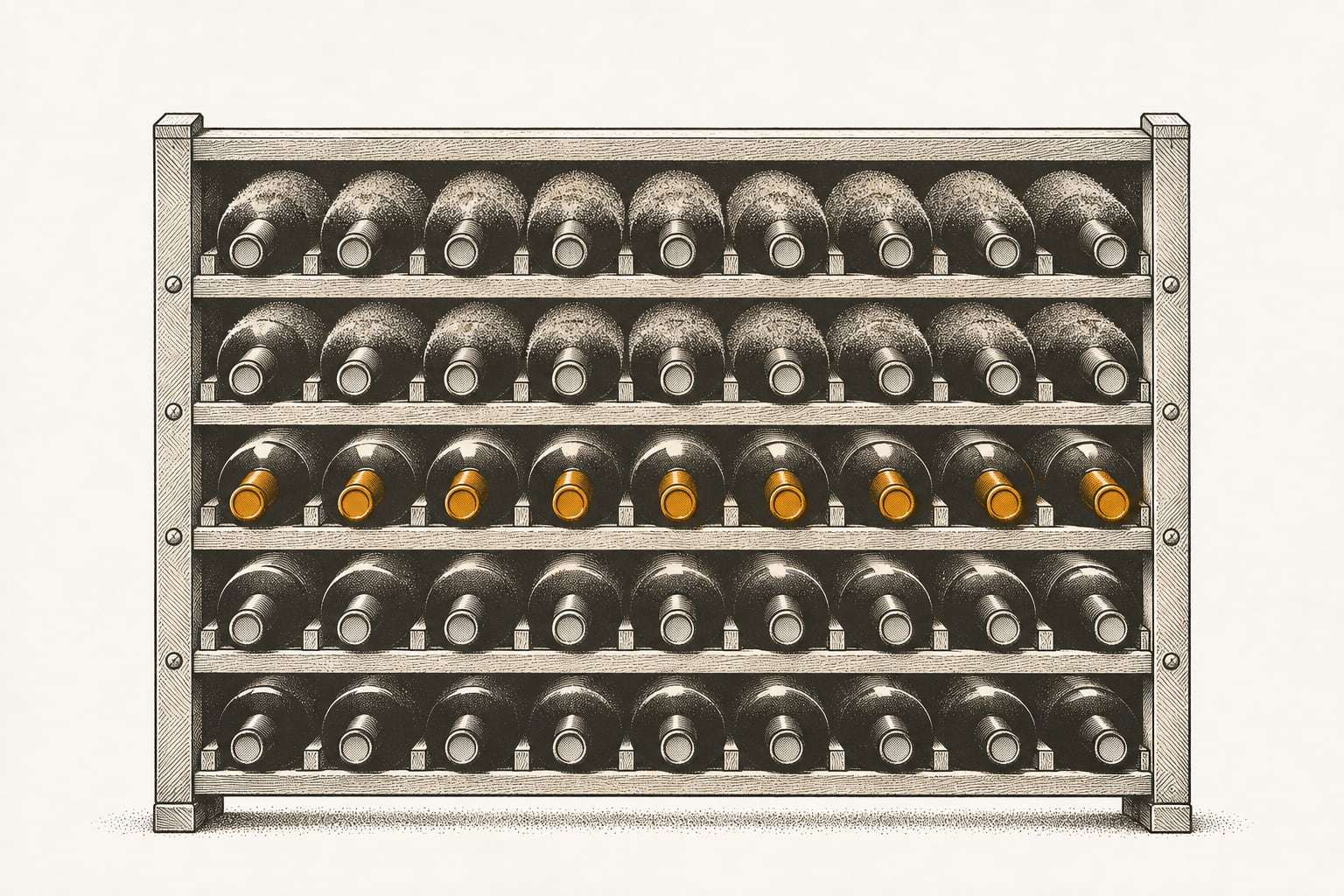
Most mistakes are found the same day. The expensive ones are found months later, and those are what retention is for.
Retention is how long each backup version is kept before it is deleted. It decides how far back you can reach. Frequency gets most of the attention, but a backup taken every hour and kept for a week cannot help with a problem found in week two.
What long retention protects against
Short retention handles the obvious case: yesterday’s deleted file. Longer retention handles the problems that hide:
- Quiet corruption. A spreadsheet or database is damaged and stays in use. Every new backup copies the damage.
- Late-noticed deletions. A folder removed in a spring cleanup is missed when someone needs it in the fall.
- Departed staff. A former employee’s files or mail are needed for a dispute months after they left.
- Slow-moving attacks. Attackers sometimes sit in a network before acting, so the last clean copy may be older than you expect.
- Year-end questions. Your accountant asks what a record looked like at the close of last year.
For each of these, the question is the same: how long can a problem sit before someone notices?
Thin the versions as they age
Keeping every daily version for seven years would be simple and expensive. Instead, most backup systems thin versions out as they age. The common pattern keeps:
- daily versions for the recent past, when you need fine detail
- monthly versions for the past year, when a month-end copy is close enough
- yearly versions for the long tail, when one copy a year is all you will ever want
Engineers sometimes call this grandfather, father, son. It gives you detail where mistakes are fresh and reach where they are old, without storing thousands of near-identical copies.
Sensible defaults by kind of data
These are the defaults we start from. Each one can be adjusted.
| Data | Default retention | Reasoning |
|---|---|---|
| Servers | 30 daily, 12 monthly and 7 yearly versions | Fine detail for a month, a copy per month for a year, then one per year |
| Laptops and desktops | 90 days of versions | Working files; long-lived records belong on a server or in the cloud |
| Microsoft 365 and Google Workspace | 1 year, extendable to 7 years | Mail and documents are often records, and departed users need cover |
| The locked off-site copy | Locked for 30 days | Covers a problem found within a month; longer locks cost more |
The laptop row deserves a word. A 90-day window is enough for most working files. If someone keeps the only copy of a contract or a client file on a laptop for years, the fix is to move it somewhere shared and backed up for longer, not to keep laptop versions forever.
Compare that with native windows
Cloud apps have their own retention, and it is shorter than many people assume. Microsoft’s support documentation says that in SharePoint, “items are retained for 93 days from the time you delete them from their original location.” (Microsoft Support) After that, a deleted item is gone unless you hold your own copy.
That is why a year is our starting point for cloud apps, not 93 days. The Microsoft 365 Backup plan keeps a year of versions by default, extendable to 7 years, and keeps departed staff accounts at no extra cost while the backup is kept. Does Microsoft 365 back up your data? covers the rest of Microsoft’s own safety nets.
Who decides the long end
The short end of retention is a technical decision. The long end often is not.
Some records have to be kept for a set number of years under tax, employment, health or industry rules. Others should not be kept longer than needed, because holding personal data you no longer use carries its own risk. We do not give legal or compliance advice: your accountant, counsel or compliance officer decides those numbers. Our job is to make the backup match what they decide, and to show you that it does.
Two practical points help:
- Write the decisions down, per kind of data, with who made each one and when.
- Remember that a backup is not an archive. Records you must keep for many years belong in a system built to hold records, with the backup protecting that system.
Decide what happens to leavers
Departed staff are a retention decision that often goes unmade. When someone leaves, their mail and files may be needed for a client dispute, a warranty claim or a question from your accountant long after their last day.
A simple routine covers it:
- Keep a list of departed accounts, with each person’s leaving date.
- Agree, with your counsel, how long a departed person’s mail and files are kept, and write it next to the list.
- Set a review date for each account, and delete on that date on purpose rather than by accident.
Without a list, departed accounts are either kept forever or lost the day a license is removed. Neither is a decision.
What longer retention costs
Longer retention costs storage, but usually less than people expect. Backups store changed blocks, and deduplication keeps one copy of data that appears many times, so a monthly version mostly holds what changed that month.
Where retention does cost real money is with large files that change often: video, imaging, and CAD models that are saved whole each time. For those, check the storage estimate before raising retention.
On the Server Backup plan, 1 TB is included per server, and extra storage is $15 per TB per month (indicative). The monthly report says when a server is close to its allowance, so a bill never changes without warning.
Example: a pricing error found late
Consider a 32-person HVAC contractor that prices every job from a parts database on its server. In November, an estimator notices that quotes have been coming out low. The cause: a bulk update in May overwrote a column of supplier prices with the previous year’s figures. Every backup since May holds the wrong prices.
With 90 days of daily versions only, the oldest copy is from August, long after the damage. The clean prices are gone, and someone spends days re-entering them from supplier invoices.
With 30 daily, 12 monthly and 7 yearly versions, the April month-end version is still there. The team restores the database from April to a separate location, compares the price column against the live one, and copies back only the prices. New parts added since April stay as they are.
The difference was not how often the contractor backed up. It was how long it kept the copies.
Deletion is part of retention
Retention also means letting go. Old versions should roll off on schedule, and you should be able to see that they do. When a client leaves us, we export their data in standard formats at no charge, then delete our copies 30 days after the export is confirmed, with written confirmation.
Ask the same of any provider: how do versions expire, and how will you prove the copies are gone when we leave?
Set your retention in five steps
- List each kind of data: servers, laptops, mail, documents and line-of-business apps.
- For each, ask how long a problem could go unnoticed. Use the worst honest answer.
- Ask your accountant or counsel which records have required keeping periods, and which should not be kept long.
- Set daily, monthly and yearly counts that cover both answers.
- Once a year, restore something from the oldest version you keep. If it does not open, your real retention is shorter than you think.
The small business backup guide covers retention alongside what to back up, where copies should live and how to test them.
See what you actually keep
If you would like to check what your current setup really keeps, the free backup check is a good place to start. In 45 minutes, remotely, we look at your retention settings, run one test restore and send a written page of findings. Book a free backup check whenever it suits you.