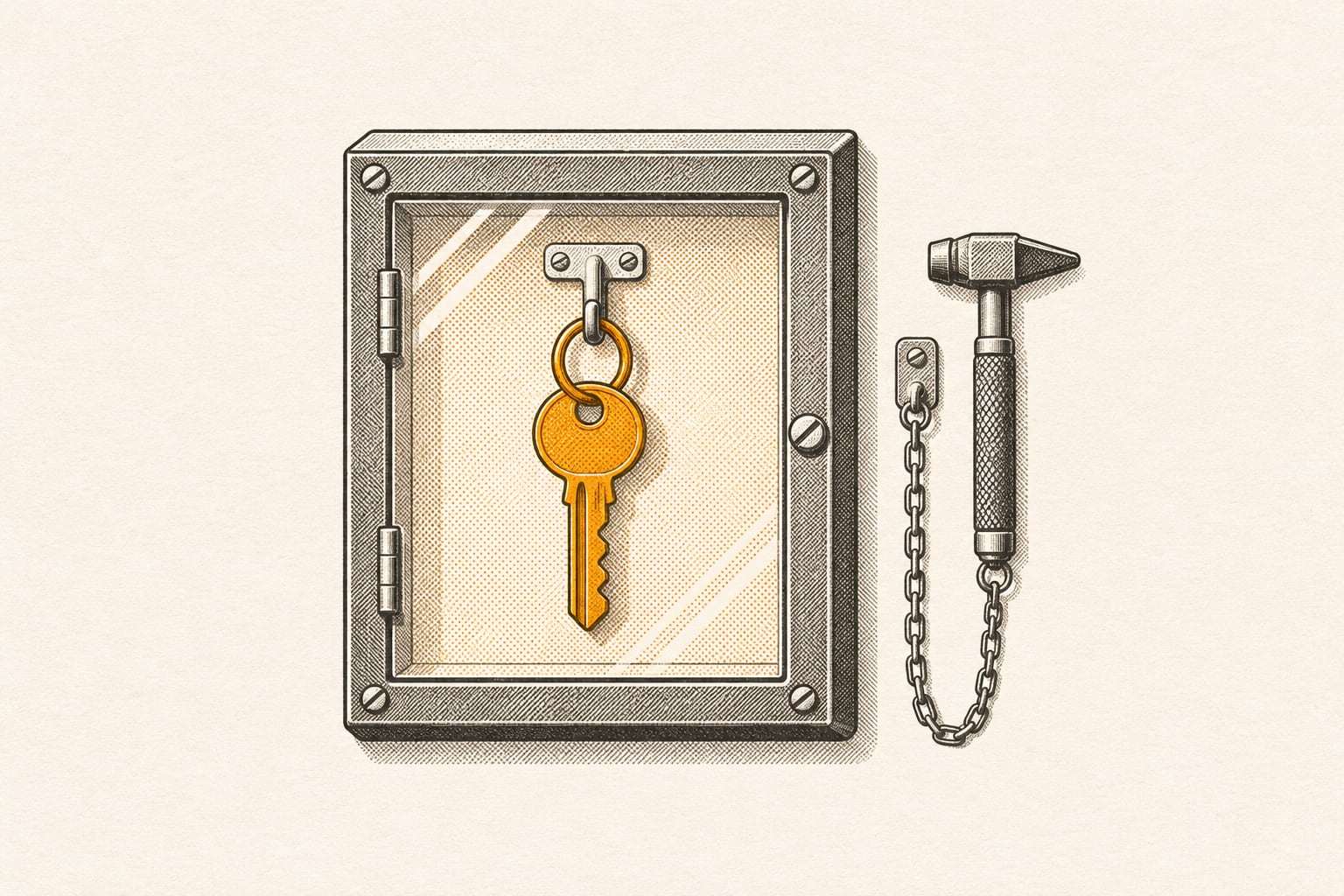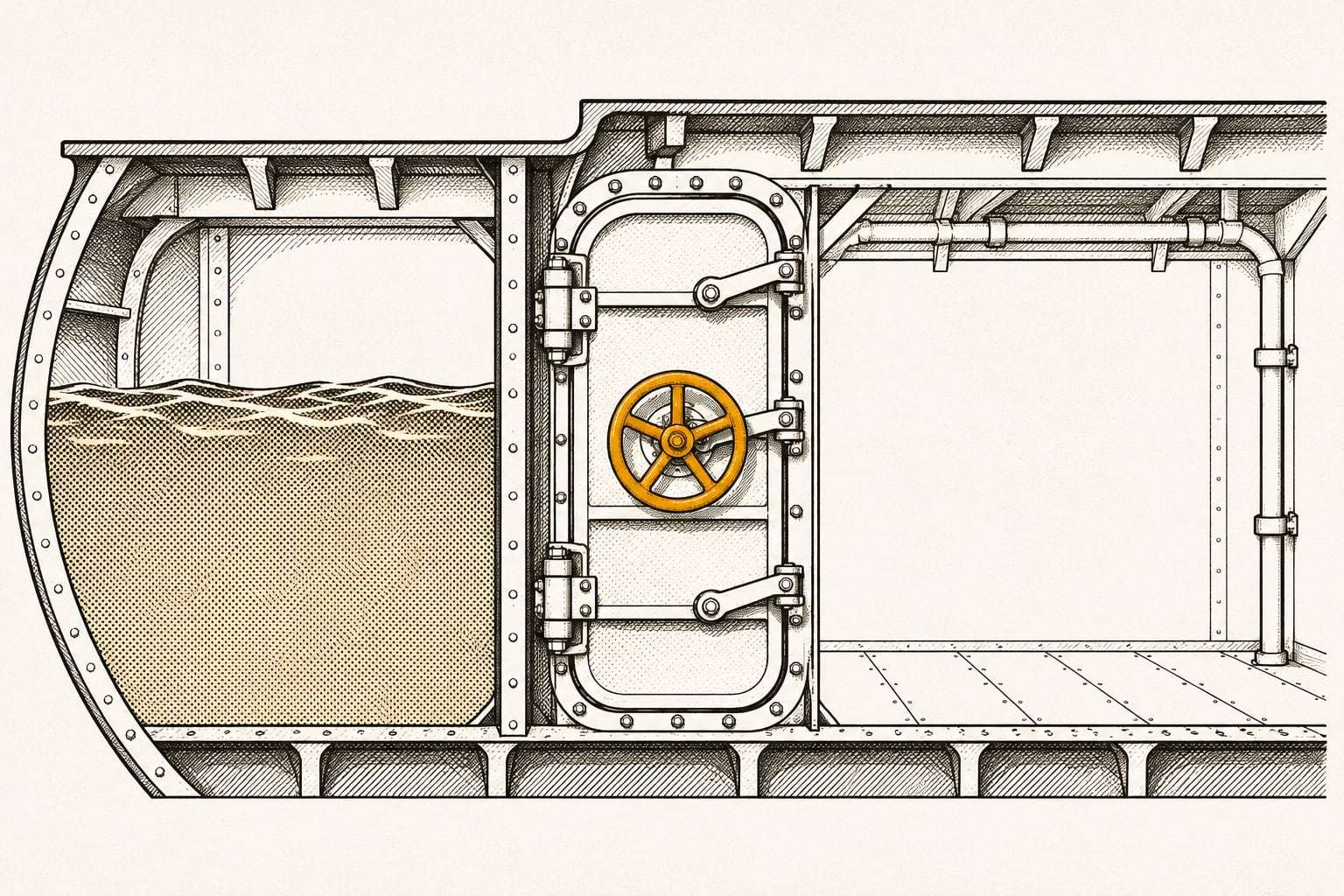
An immutable backup is a copy that cannot be changed or deleted until a date you set. Not by you, not by your IT provider, not by your backup company, and not by anyone who has stolen one of your passwords.
That last part is the reason it exists. This article explains how the lock works, where it helps, what it costs and what it does not do.
Why ordinary backups fall short
An ordinary backup can be deleted by anyone with the right access. For years that was acceptable, because the main threats were failed disks and accidental deletions.
Ransomware changed the threat. CISA’s #StopRansomware Guide warns that “many ransomware variants attempt to find and subsequently delete or encrypt accessible backups to make restoration impossible unless the ransom is paid.” If an attacker holds your admin password, a backup you can delete is a backup they can delete.
The same guide tells organizations to “maintain offline, encrypted backups of critical data.” To be precise, an immutable cloud copy is not offline: it sits on storage connected to the internet. It reaches the same goal by a different route. The copy can be reached, but it cannot be changed.
How the lock works
The lock is enforced by the storage itself, not by the backup software.
- A backup is written to storage that supports write-once retention.
- Each copy is stamped with a retain-until date, for example 30 days from today.
- Until that date, the storage refuses any request to change, overwrite or delete the copy. It does not matter whose login sends the request.
- Once the date passes, the copy can be removed normally, and older versions roll off as planned.
In the strict form of this lock, not even the storage provider’s own administrators can shorten the date. Some systems also offer a softer mode, in which specially privileged accounts can lift the lock early. That is more flexible and less protective. Ask which mode your copy uses.
Because the rule lives in the storage, the usual attack paths fail. Deleting the backup job, wiping the backup server or asking the storage to delete the files all come to nothing until the date passes.
Immutable, offline and air-gapped
Three related words are often used loosely:
- Offline: the copy is physically disconnected, like a drive in a drawer. Strong protection, but someone has to rotate the drives, and the copy is only as fresh as the last swap.
- Air-gapped: there is no network path to the copy at all. Strictly, that means offline. Some providers use the word more loosely for cloud copies kept behind separate credentials.
- Immutable: the copy is online but locked. It is written automatically every night, and it cannot be changed once written.
For a business of 5 to 200 people, an immutable cloud copy is usually the most practical of the three, because it does not depend on anyone remembering to do anything.
The honest limits
Immutability solves one problem well. It does not solve the others:
- It does not stop data theft. A lock stops changes, not reading. If an attacker copies your files before encrypting them, immutability does nothing about the copy they took. Encryption and access controls handle that.
- It cannot fix what was already bad. If files were encrypted on Tuesday and backed up on Tuesday night, that night’s copy is locked and encrypted. You need versions from before the problem, which is why retention matters as much as the lock.
- The lock has to outlast detection. Attackers sometimes sit quietly in a network before acting. If the lock is 30 days and the trouble began 45 days ago, the clean copies may already have rolled off.
- Mistakes are locked too. Back up something you should not have, and it stays until the date. That is the point, but plan for it.
- Storage costs follow the lock. You pay to keep every locked copy for the full period, even ones you would rather delete.
What changes day to day
Very little. Backups run on the same schedule, and restores work the same way, because reading a locked copy is allowed. The difference shows only when someone tries to change or delete a copy early, and the storage refuses.
Two practical consequences are worth knowing in advance:
- Changing providers takes an overlap. Locked copies stay until their dates pass, so plan for the old and new copies to exist side by side for a while.
- Deletion requests wait for the lock. If you ask for data to be removed, locked copies go when their lock ends, not before. Our own exit works this way: we delete our copies 30 days after your export is confirmed, and confirm it in writing.
How long to lock
The lock period trades protection against cost. A 30-day lock covers a problem found within a month. Longer locks, up to a year, cover slower discoveries and cost more, because more copies are held at once.
Three questions set the number:
- How long could something go wrong before anyone noticed?
- How far back would you need to go to be confident a copy is clean?
- Do any records need to be kept unchanged for a set period? Your counsel or compliance officer decides that, not your backup provider.
Where the locked copy should live
A lock protects against people. Distance protects against places. The locked copy belongs in a different region from your primary backup, far enough away that one storm, fire or power failure cannot reach both. Off site should mean far away covers how far is far enough.
Encryption still matters. A locked copy should be encrypted at rest and in transit, and you should know who holds the key. Who holds your backup encryption key? covers that choice and its trade-offs.
This is how we store every backup. The second copy sits in a US region at least 500 miles from the first, encrypted with AES-256, and locked for 30 days by default. Nobody, including our own engineers, can change or delete it before the lock ends. Our security page sets out where copies live, who can reach them, and what we do not claim.
If you already have a local backup or a NAS, the Immutable Offsite Copy plan adds the locked copy on its own: a 30-day lock by default, up to 1 year, with the option to hold your own encryption key. It starts from $15 per TB per month (indicative). For servers, the Server Backup plan includes a locked copy in the second region as standard.
Example: a script deletes the backups
Imagine a 38-person commercial printing company. Its outside IT provider runs a script to clear old files from a full NAS. A typo in the path points the script at the NAS’s backup folder, and six months of local backups disappear in a few minutes. Nobody notices for a week, because the nightly jobs keep running into the now-empty folder.
The following week, a press operator saves over a job file that took two days to prepare. The local backup holds only a week of history. The locked copy in the second region does not care what happened to the NAS. It still holds every nightly version from the lock period, and the job file comes back from the night before it was overwritten.
No attacker was involved. Immutability protects backups from honest mistakes too, including mistakes made by the people paid to look after them.
Questions to ask any provider
- Is the lock enforced by the storage, or only by the backup software?
- Can anyone, including your own staff, shorten or remove it?
- How long is the default lock, and can I change it?
- Is the locked copy in a different region from the primary copy?
- Who holds the encryption key?
- When did you last restore from the locked copy, and can I see the result?
The last question matters most. A locked copy that has never been restored is still an untested copy. Our 3-2-1 backup checklist shows where the locked copy fits among the rest of your copies.
Find out what is locked
If you are not sure whether any of your copies are locked, the free backup check will tell you. In 45 minutes, remotely, we review where your copies live and who can delete them, run one test restore and send a written page of findings. Book a free backup check when it suits you.